
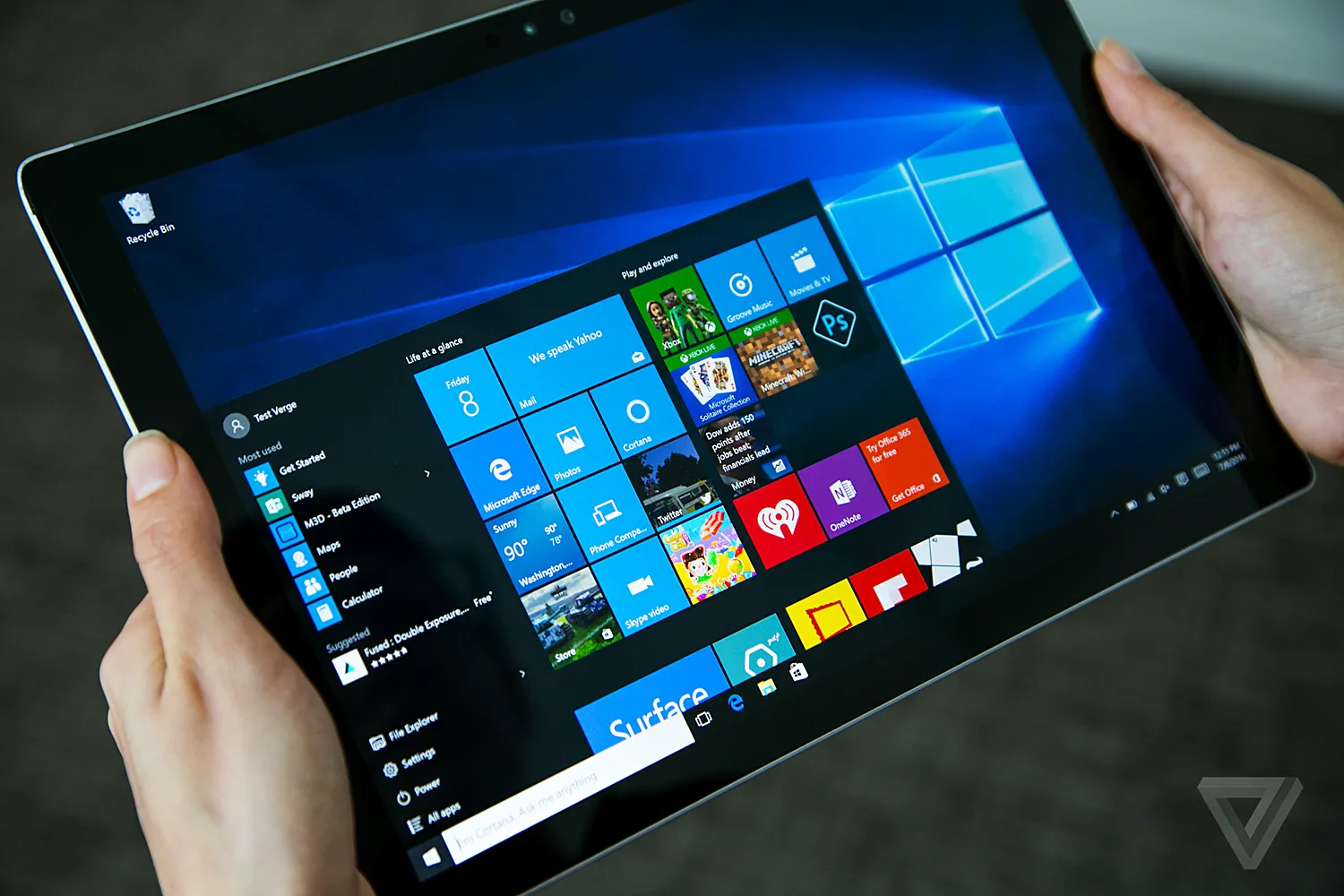
Windows 10 is Retiring: What You Need to Know
If you are using a computer with Windows 10, then this is something that you must know. There is a huge change that is coming shortly, and Microsoft will no longer be offering free support for Windows 10.
October 14, 2025, is the day when the support of Windows 10 will officially come to an end.
After this day, Microsoft will no longer be giving Windows 10 security updates for free. Your computer will remain operable, but it will be more dangerous to use.
Why Ending Support Matters
The very first and the most important updates your PC will not be able to get are the ones after the end date. These protections come from the security fixes that shield your computer from new viruses and online threats.
Without those updates, your laptop or desktop becomes at the disposal of criminals who take advantage of it. This is the main reason why the switch to a new operating system such as Windows 11 is very much suggested.
Moving to Windows 11: the Next Step
First of all, Windows 11 is the latest version with more advanced features such as higher speed and better security
Windows 11, on the other hand, has set new regulations about the kind of computer hardware that can be used to run it.
That is to say that USB must have TPM 2.0 (a security chip) and a new type of CPU (processor). In short, most of the older and low-cost computers are not equipped with those necessary hardware components. Such machines are referred to as “incompatible” or “unsupported.”
If your PC is a non-supported one, Microsoft would recommend that you buy a brand-new one. But, you still have some options left. For example, there are numerous people who have been able to get Windows 11 running on their old machines.
How to Install Windows 11 on a Low-Spec Computer
Although Microsoft is not very happy about these methods and does not give its approval, you can find many people using these methods in order to upgrade their current PCs.
A Quick Warning: When you install Windows 11 on a computer that is not supportive, the computer might not be able to receive big updates from Microsoft later on. There is also a tiny possibility of you stumbling upon other issues. Therefore, kindly back up important files before you begin.
These are the typical methods by which Windows 11 can be installed on a low-spec or unsupported PC:
Method 1: The Simple Registry Trick (Best for Upgrade)
This way is perfect for the “in-place upgrade” scenario. Thus, you can upgrade Windows 10 to 11 without making a backup of the data or removing the applications on your device.
- Transform a Parameter: Initially, open the Registry Editor in Windows 10 by yourself. The program is like a database that keeps the most crucial system parameters.
- Locate the Directory: Come to this point: HKEY_LOCAL_MACHINE\SYSTEM\Setup.
- Make a New Setting: The new folder (also known as a key) that you’ve created inside the Setup directory should be named MoSetup.
- Adjust the Data: What you have to do is to allocate the value 1 to the AllowUpgradesWithUnsupportedTPMOrCPU data inside the newly created value that can be found in the MoSetup folder. Set its data to 1.
- Kick off the Installation: Acquire the Windows 11 ISO file from the official Microsoft website. This file can be double-clicked to open it, and the setup.exe can be run from there.
By now, the installation program will locate your special configuration and omit the CPU and TPM hardware tests.
Method 2: Use Rufus to Create a Special USB Drive (Best for Clean Install)
Rufus is a handy program that helps to make bootable USB drives out of various files. It offers a simple option to eliminate the Windows 11 hardware requirements.
- Prepare Your Files: First, download the latest Windows 11 ISO image and the executable file of Rufus.
- Connect a USB Drive: Make sure you have a flash drive with 8 GB or more of free space.
- Start Working with Rufus: Launch Rufus. Select your USB drive and then open the Windows 11 ISO file.
- Mark that option: there will be a small window appearing, and you need to mark the checkbox that says “Remove requirement for 4GB+ RAM, Secure Boot, and TPM 2.0” in it.
- Wrap up and install: Click Start. After the USB drive is set up, reboot your computer and perform a boot from the USB.
This way, your modified bootable USB will allow you to put Windows 11 on just about any PC without compatibility errors showing up.
Method 3: The Command Prompt Trick (Advanced Clean Install)
Besides that, there is also the use of a hidden command in the midst of a fresh setup, which serves as a bypass for the checks.
- Launch from Media: Utilize the installation USB to give your machine a fresh start. During the process, allow it to boot from the media.
- Go for Command Prompt: Right on the first screen of the setup, utilize the key combination Shift + F10. The screen called Command Prompt comes into view—a black window.
- Call Registry Editor: The prompt being black, type “regedit” and hit Return. This leads to the opening of Registry Editor.
- Locating Key: Go to HKEY_LOCAL_MACHINE\SYSTEM\Setup in the editor and create the LabConfig folder (key) there.
- Remove All the Checks: In the LabConfig folder, create these three new 32-bit DWORD value names with data set to 1 for each: BypassTPMCheckBypassSecureBootCheckBypassCPUCheck
- Remember that in order to bypass the TPM check, the DWORD value BypassTPMCheck should be created, and its value should be set to 1.
- Similarly, a DWORD value named BypassSecureBootCheck set to 1 is what you need to bypass the secure boot check.
- Likewise, the third DWORD named BypassCPUCheck with value 1 is there for bypassing the CPU check.
- Proceed: After closing both Registry Editor and Command Prompt, return to the primary installation screen and carry on.
The Windows 11 installer will no longer check that the PC meets the safety and hardware specs, and you are free to install the system on an older laptop or desktop.